
The Easiest Way to Remove a Reel Watermark and Repurpose Your Content

How to Download Your Instagram Reels Without the Watermark Using Canva
You have a Reel that performed really well. Maybe it got shared, saved, or it just said exactly the right thing at the right time. And now you want to repurpose it.
But the second you try to download it from Instagram, that watermark shows up right in the corner. That bouncing logo that says "this came from somewhere else" the moment you post it anywhere.
Platforms like TikTok are known to deprioritize videos that come in with a watermark from another app. So not only does it look a little off, it can actually hurt your reach before anyone even sees the content.
The fix most people turn to is a third-party website, and some of those work fine. But there is a much cleaner option that a lot of people are sleeping on.
You can do this directly inside Canva.
If you are already using Canva for your templates and graphics, you have everything you need. No sketchy websites, no random downloads, no ads to dodge. Just Canva, your Instagram account, and a few taps.
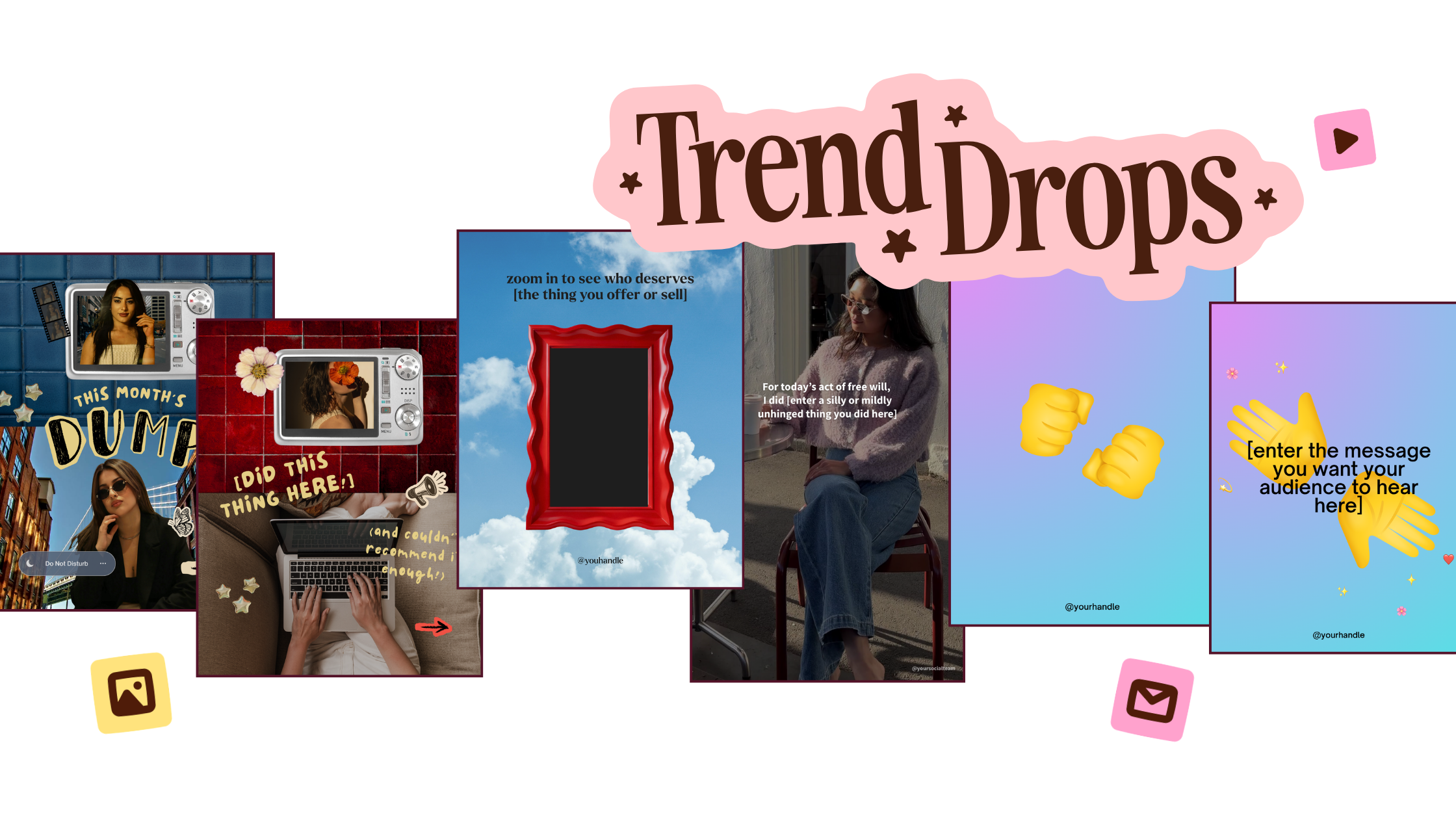
Want to try a FREE Canva template?
Grab the latest Canva Template from inside of Your Template Club “Trend Drops” so you can test out these timely, viral, trend templates for your business!
Why Canva Is the Better Option
Most free watermark removal tools are ad-supported, which means the pages are full of pop-ups and fake download buttons designed to get you to click the wrong thing. They work, but they require a little patience and awareness every single time you use them.
Canva connects directly to your Instagram account inside the app. Once it is set up, pulling in your Reels is clean, fast, and takes about thirty seconds. And because you are downloading from Canva instead of from Instagram, the watermark does not come with it.If you are already a Canva user, which most people in this community are, this is a no-brainer.
So what do you need? A Canva account (free or paid both work). Your Instagram login. That is it. You do not need a third-party tool. You do not need a template or a design already built. You just need to get into Canva and follow the steps below.
Step-by-Step: How to Pull Your Reels into Canva and Download Them Without the Watermark
Step 1: Open Canva and start a new Reel design.
Open the Canva app and start a new design. Search for "Reel" in the design type options and select it. This gives you the right dimensions to work with from the start, which matters when you are downloading for video platforms.
Step 2: Go to the Apps tab and search for Instagram.
Inside your new design, tap the Apps tab at the bottom of the screen. Search for "Instagram" and open the integration. If it is your first time, it will prompt you to connect your account.
Step 3: Connect your Instagram account.
Follow the prompts to log in and connect your Instagram. You will only have to do this once. After the first time, it will stay connected and your content will be ready to pull in anytime.
Step 4: Browse your feed and bring in your Reels.
Once your Instagram account is connected, your feed will load right inside the tab. Scroll through and find the Reel you want to repurpose. When you tap on it, it will be pulled directly into your Canva design.The audio comes with it. You do not need to do anything extra to keep the sound attached.
Step 5: Download as an MP4.
Once your Reel is in the design, tap the download button and choose MP4 as your file type. That is your watermark-free video, ready to go. Now you can upload it natively to TikTok, Pinterest, YouTube Shorts, or anywhere else you want to repurpose it — no logo, no watermark, no drama.
A Few Things to Know Before You Start
This works with your own content only. Because you are connecting your personal Instagram account, you will only have access to your own posts and Reels. This method is specifically for repurposing your own content across platforms.
The audio comes with it. One of the best parts of this method is that the original audio is attached when you bring the Reel into Canva. So if you used a trending sound and it really contributed to the performance of that video, you do not lose it in the process.
You can bring in multiple Reels at once. If you want to batch this and download a handful of videos in one session, you can do that. Pull in each Reel, download it as its own MP4, and work through your backlog in one sitting.
Free Canva accounts can use this feature. You do not need a Canva Pro subscription to connect Instagram and access your content this way. The integration is available on the free plan.
What to Do After You Download
Downloading the watermark-free video is step one. What you do with it next is what actually moves the needle.
Repurposing content is not just copy-pasting the same video everywhere and calling it a day. Every platform has its own culture and its own audience, and what works on Instagram might need a small tweak to land somewhere else.
Here is how to get the most out of every Reel you repurpose:
Upload natively every time. Do not share directly from one platform to another. Download the video and upload it fresh. Native uploads almost always perform better than cross-posts.
Rewrite your caption for each platform. Instagram captions are longer and more conversational. TikTok captions are short. Pinterest descriptions need keywords. Take five minutes to adjust your copy for where you are posting.
Think about the hook. What stops the scroll on Instagram is not always the same as what stops the scroll on TikTok. If the video starts with a moment that works across platforms, great. If not, consider whether a small edit or a different on-screen text overlay would make it land better.
Make sure your video leads somewhere. This is the one people skip, and it is the most important step. If someone watches your Reel on TikTok or Pinterest and wants more, where do they go? If the answer is "nowhere," that is a missed opportunity every single time.
Ready to Make Content Creation Easier?
Your Template Club is the creative shortcut for small business owners who want their content to look polished, stay on-trend, and get done without the guesswork. With Canva Create 2026 raising the bar on what's possible inside Canva, there has never been a better time to have a library of done-for-you templates ready to customize and post.

Photo: KVC Photography
About Manu Muraro
Manu Muraro is the founder of Your Social Team, a content marketing brand helping small business owners grow through strategic email marketing and Instagram content.
She’s the creator of Your Template Club, one of the first Canva template subscriptions designed for Instagram, and the founder of Your Inbox Team, a weekly email marketing membership that helps entrepreneurs send consistent, high-converting emails in under 15 minutes.
Manu is also the creator of The Reelies Awards, the first award show celebrating Small Business Owners and Creators’ creativity and originality in Instagram Reels.
A former creative strategist at Cartoon Network, Manu brings award-winning experience to everything she creates — from viral Reels to done-for-you content that saves time and drives results.
👉 Follow Manu at Your Social Team on Instagram